
On this page
The Fastest Way to Find the Font
The phrase extract font from PDF can describe two different tasks. You may want the font resources stored inside a digital PDF, or you may only want to identify the typeface that is visible on a page. Those are related, but they are not the same problem. A document inspector is useful for the first task; visual matching is often better for the second.
Start by selecting text. If you can highlight a headline or paragraph, check the font name, style, and whether the file reports an embedded or subsetted font. If you cannot select the text, or the result looks like a scanned page or a poster, treat the page as an image. A clear crop gives a visual detector better evidence than a noisy full-page upload.
A practical rule
Use metadata to answer “what font resource does this file declare?” Use visual matching to answer “what typeface does this page look like?” For many PDFs you need both checks before choosing a replacement.
What Kind of PDF Do You Have?
Before opening a tool, identify the document type. The same PDF extension can contain very different typography evidence.
- Selectable digital PDF: Text can be highlighted and copied. Font metadata may be available, so a properties or preflight view is a sensible first check.
- Subsetted or embedded PDF: The file may include only the characters it uses, or display an internal name with a prefix. The name can look unfamiliar even when the visible family is common.
- Scanned PDF: Each page is effectively a picture. OCR can recover words, but it does not automatically tell you the original typeface.
- Flattened artwork or screenshot: The text is part of a graphic, brochure cover, slide export, or image. Visual comparison is the relevant route because there may be no font resource to inspect.
How to Check Embedded Font Information in a PDF
For a digital PDF with selectable text, inspect the file before guessing from letter shapes. The exact menu names differ between PDF readers, but the evidence you want is consistent.
- Open the PDF in a reader that exposes document properties, print-production details, or a preflight panel.
- Look for the document's font list and note the family name, style, embedding status, and whether the font is marked as a subset.
- Select a visible text sample and compare the reported family with what the page actually renders. Check a heading and body copy separately when the design uses more than one font.
- If the name contains a subset prefix, a viewer-specific internal name, or a fallback family, treat it as a clue rather than a final visual verdict.
- Record the exact weight and style before searching for a licensed file or a close replacement. Regular, medium, semibold, italic, and condensed cuts can look like different fonts in practice.
Why metadata can be confusing
A PDF can embed a full font, a subset, or a resource name that is not the clean family name used in a font library. Missing fonts may also be substituted by the reader. That is why the visible page and the declared resource should be compared rather than treated as interchangeable.
Use Visual Matching for Scans, Screenshots, and Flattened Artwork
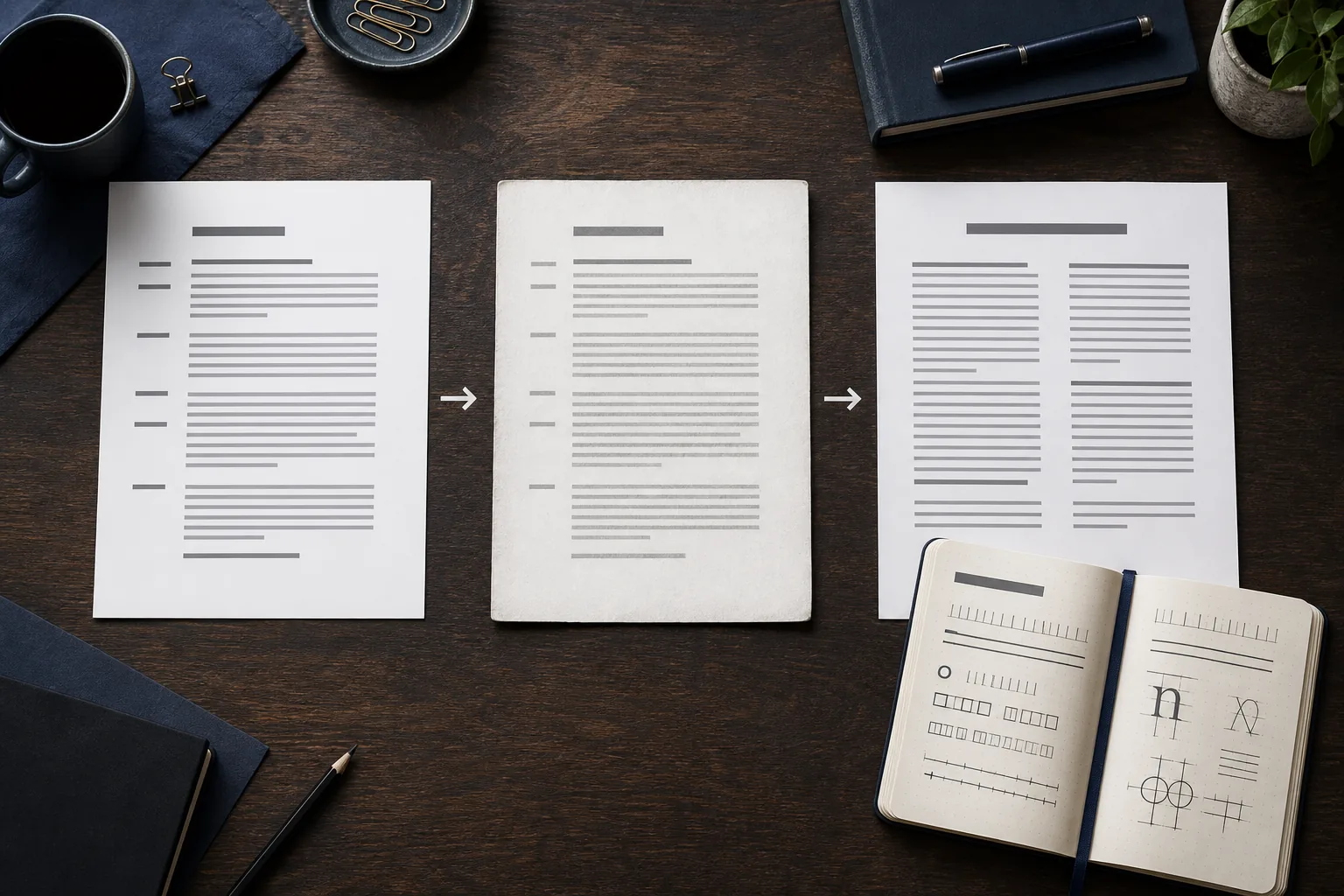
When someone searches what fonts are in this PDF, they may be looking at a brochure, report cover, form, presentation export, or scanned archive. In those cases the visual sample is often more useful than a technical font list.
Crop one strong sample instead of uploading a whole busy page. A short headline with several distinctive letters gives a detector more signal: look for a lowercase a or g, the shape of R and S, the terminals of e and t, serif contrast, stroke width, spacing, and the proportions of numerals. Keep the crop straight, sharp, and large enough to read.
Use the result as a ranked hypothesis. A visual detector can point you toward the likely family and similar fonts, but a custom wordmark, altered letter, low-resolution scan, or unusual language may prevent an exact match. Compare two or three distinctive characters yourself before using the result in a new design.
How to Find the Font in a Word Document
Word files usually expose more direct font information than a flattened PDF. The challenge is that one document can contain several styles, theme fonts, text boxes, tables, headers, and pasted artwork.
- Click inside the text you want to inspect and note the font family, size, weight, and style shown by Word's font controls.
- Select a larger range when you need to find inconsistent formatting. Check headings, body text, captions, footnotes, tables, and headers separately because they may use different styles.
- Open the styles or theme-font settings when the document uses named styles. A style can define the visible font indirectly, while direct formatting may override it for only part of a paragraph.
- If the text is inside an image, scanned page, chart, or screenshot pasted into Word, selection will not expose the original font. Save or crop the image and use visual matching instead.
- Before reusing the font, check whether the document references a commercial family and whether the license covers your new project. Finding a font name is not the same as obtaining permission to distribute it.
Word can contain both live text and pictures
A Word document may look editable while a particular heading is actually a pasted image. Test the exact text you care about. If you cannot place the cursor inside the letters, switch from document inspection to image-based identification.
PDF Font Extraction vs Visual Font Finding
Choose the workflow that matches the evidence in your file. None of these methods is universally best.
| Method | Best for | What it reveals | Next step |
|---|---|---|---|
| PDF properties or preflight | Selectable digital PDFs | Declared families, styles, embedding and subset clues | Confirm the rendered sample and license |
| Word font controls and styles | Live document text | Applied family, size, weight, style, and style inheritance | Check each text role separately |
| OCR | Recovering words from scans | Searchable text, not necessarily the original typeface | Use the page image for visual matching |
| Font Detector | Scans, screenshots, covers, and flattened artwork | Likely visible family and close alternatives | Compare letterforms and verify licensing |
A Reliable PDF and Word Font Workflow
A repeatable process prevents the most common mistake: treating a file name or a single font label as proof that the visible typeface is correct.
- 1. Test selection: Try to highlight the exact letters. Selection tells you whether metadata inspection is possible.
- 2. Inspect the source: For live text, check font family, style, weight, theme or embedded status, and any fallback clue.
- 3. Prepare a visual crop: For scans or artwork, crop one clean line, remove extra graphics, and keep distinctive letters visible.
- 4. Compare and verify: Use the likely match as a starting point, compare letter anatomy, then confirm the font's license before production use.
Common Problems and How to Fix Them
Font identification becomes unreliable when the source hides or changes the evidence. These fixes improve the next attempt without promising certainty.
The PDF shows a strange font name
Check for a subset prefix, internal resource name, or fallback. Compare the selected text with the rendered page and use a visual crop when the name is not useful.
The scan contains tiny or blurry text
Export a higher-resolution page, crop a larger heading, straighten the image, and avoid compression artifacts around the letter edges.
The result suggests several similar fonts
Compare distinctive letters, numerals, spacing, and weight. A close alternative may be more realistic than an exact claim for a custom or modified typeface.
Word reports one font but the page looks different
Check direct formatting, styles, theme fonts, text boxes, and pasted images. Inspect the exact object rather than assuming the document's default font applies everywhere.
PDF and Word Font FAQ
Choose the Evidence, Then Choose the Tool
The best way to extract a font from PDF or find a font in Word is to begin with the file's actual evidence. Selectable text supports metadata and style inspection. Scans, screenshots, and flattened artwork need a clear visual sample. When a file mixes both, use both methods and compare their answers.
Once you have a likely family, verify the weight, test the most distinctive letters, and check licensing before you reuse it. A careful workflow is faster than repeatedly guessing from a noisy page or trusting a misleading internal PDF name.
Ready to test a PDF page?
Upload the PDF or a clean page image to the PDF Font Detector when the visible typography is the part you need to identify.
Useful References
- Adobe guidance on viewing document properties and PDF font information — Adobe Acrobat help
- Microsoft guidance for changing and checking fonts in Word — Microsoft Support
Last updated: August 2, 2026
Back to Font Detector