
Table of Contents
When a Font Finder Extension Is the Right Tool
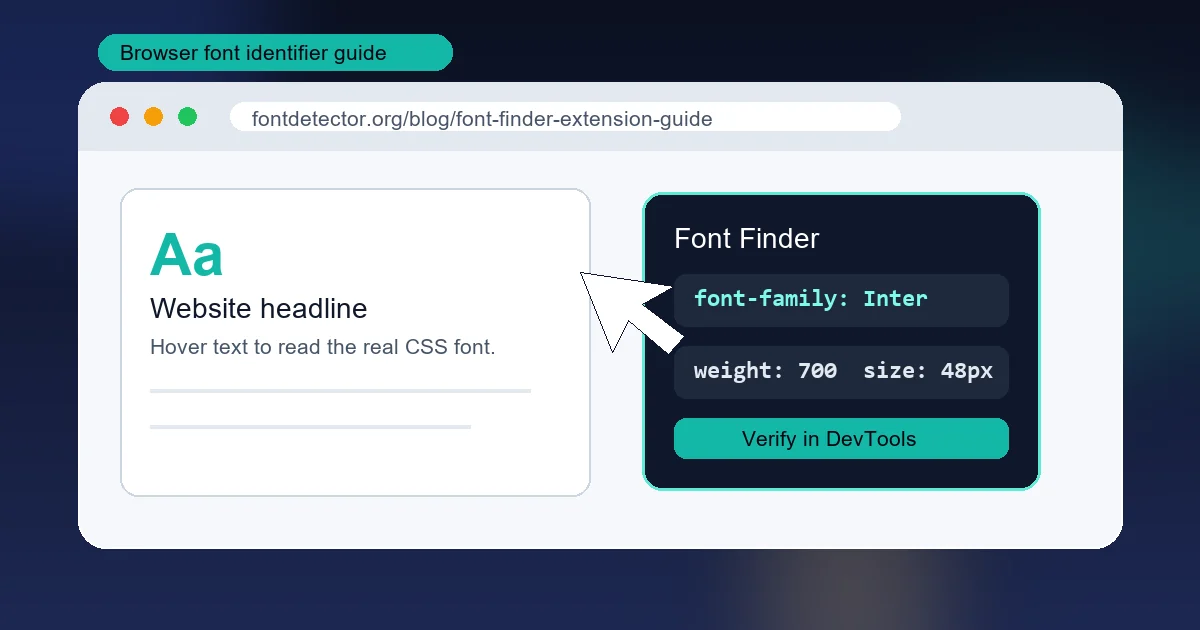
A font finder extension is best when you can open the original webpage and select or hover over real HTML text. In that situation the browser already knows the font stack, computed font size, weight, line height, and color. A good extension simply exposes that information without forcing you to inspect CSS manually.
This is a different search intent from finding a font in a static image. If the text is baked into a logo, poster, screenshot, ad creative, Canva export, PDF image, or social graphic, the extension has nothing to read. You need visual matching instead. That is where an AI font detector or image font finder belongs.
Rule of thumb
If you can highlight the text on the page, try a browser extension first. If you can only see the text as pixels, upload the image to Font Detector.
Best Font Finder Extensions Compared
Most browser font identifiers do the same basic job, but they differ in speed, detail, and workflow fit. Start with the simplest option if you only need the font name; choose a fuller tool if you compare typography often.
| Extension | Best for | Shows | Limits |
|---|---|---|---|
| WhatFont | Fast checks on live webpages | Font family, size, weight, color, and basic style details | Less useful for deep comparison or image-only text |
| Fonts Ninja | Designers comparing multiple website fonts | Font details, previews, detected page fonts, and trial workflows | More interface than casual users need |
| Fontanello | Developers who want CSS-oriented details | Right-click font family, weight, size, color, and CSS properties | Depends on selectable webpage text |
| Browser DevTools | Final verification | Computed CSS and rendered font information | Slower than a one-click extension |
How to Use a Font Finder Extension
The exact interface varies, but the workflow is almost always the same:
- Install a reputable extension from your browser's official extension store.
- Open the webpage that contains the font you want to identify.
- Click the extension icon, then hover over or click the target text.
- Record the reported font family, weight, size, line height, color, and fallback fonts.
- If the result looks like a generic fallback, verify it in DevTools before choosing a download or replacement.
Do not stop at the first font name
Many CSS font stacks list several fonts, such as Inter, Arial, sans-serif. The first family is the intended font, but the browser may fall back if the webfont fails to load. Check the rendered font panel or computed styles before you treat the first name as the final answer.
How to Verify a Website Font with DevTools
When a design decision depends on the exact typeface, use the extension as a shortcut and DevTools as the final check.
- Right-click the target text and choose Inspect.
- Select the element that contains the visible text.
- Open the Computed panel and search for font-family.
- Check font-size, font-weight, line-height, and letter-spacing.
- In Chrome or Edge, use the rendered fonts area when available to see which font file was actually used.
This step matters because sites often define long fallback stacks, variable fonts, and responsive typography. The visible result may change by device, viewport width, language, or loading state.
When a Font Extension Will Not Work
A browser extension cannot identify every font because it depends on live text in the DOM. Use the format of your source as the decision point:
| Source | Use instead | Why |
|---|---|---|
| Logo or image | Font Detector | The text is pixels, so visual matching is required. |
| Screenshot | Font Detector or the original webpage | An extension only works if you can open the live page. |
| Flattened PDF | Screenshot plus AI detection | There may be no embedded font metadata to read. |
| Selectable PDF | PDF properties first | Embedded font lists can reveal the exact font without guessing. |
A Reliable Font Identification Workflow
For real projects, do not rely on one signal. Use a short workflow that matches the source:
- Live website: Use a font finder extension, then verify the computed and rendered font in DevTools.
- Screenshot or logo: Crop to the exact word and upload it to Font Detector for visual matching.
- PDF: Check embedded fonts first; if the PDF is flattened, take a clean screenshot and use image detection.
- Unclear result: Compare distinctive letters such as a, g, R, S, numerals, stroke contrast, and spacing before choosing a replacement.
Frequently Asked Questions
References & Sources
Last updated: May 22, 2026
Back to Font Detector