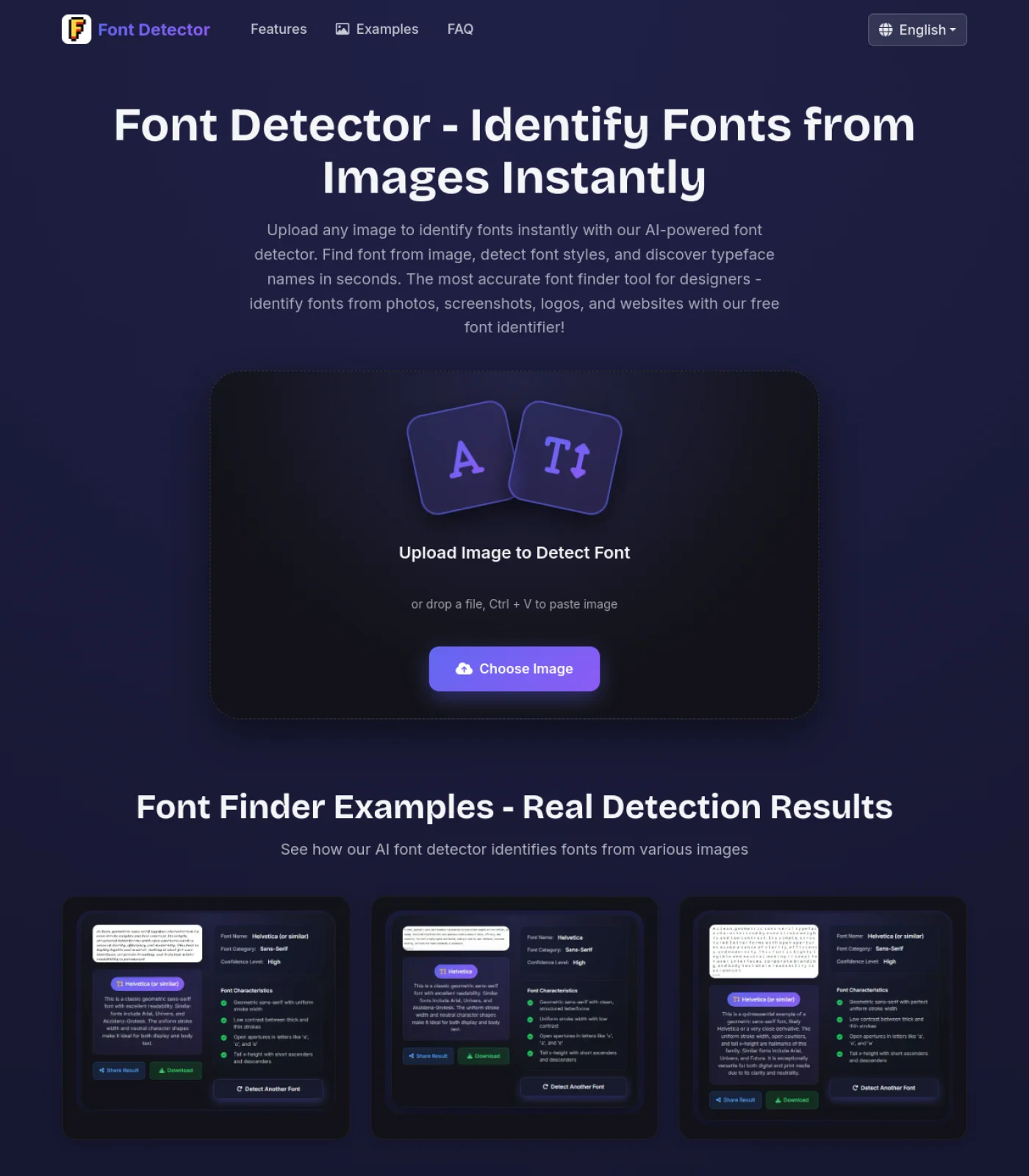
Upload a PDF file, a PDF page screenshot, or a scanned document image to identify the visible font in seconds. This PDF font detector is designed for the real situations behind the search: brochure pages, forms, covers, slides exported as PDF, print-ready layouts, and scanned files where you can see the typography but cannot easily inspect the original source. If you need a practical answer fast, this page helps you detect the font, understand how reliable the match is, and compare similar alternatives you can use next.
Upload a PDF or PDF Page Image
Drop a PDF file, paste a screenshot, or choose a PDF page image
Detecting PDF Font...
Analyzing the Font in Your PDF Sample...
Please wait 5-25 seconds while we inspect the visible text from your PDF page or scan
Detecting PDF Font...
Preparing the PDF page or screenshot
Comparing letterforms and typographic clues
Finding the closest font and alternatives
0
PDF Font Detection Result
Primary Match:--
Font Category:--
Match Type:--
Confidence Score--
Confidence Level--
Key PDF Letterform Clues
Similar Fonts to Try
PDF-Specific Notes
PDF Font Detector Examples
Use the same workflow for brochure covers, printable forms, PDF reports, scanned flyers, proposals, and layout exports where the visible type matters more than the original source file.
How to Use the PDF Font Detector
Step 1
Upload a PDF, Scan, or Page Screenshot
Start with the clearest sample you have. You can upload a PDF file directly, drag in a screenshot of a PDF page, or use a scanned page image. A PDF font detector works best when the headline, title, form label, or paragraph sample is large enough to show stroke contrast, spacing, serif shape, and letter proportions.
Step 2
Let the Tool Inspect the Visible Typography
Our workflow focuses on the font you can actually see on the page. That matters because many people searching for a font detector from PDF are working with flattened layouts, scanned documents, exported slides, or visual samples where a file-level font list is not easy to access or not helpful enough.
Step 3
Review the Match, Confidence, and Similar Fonts
See the likely font name, the font category, how strong the visual match looks, and which similar fonts are worth testing next. If the exact typeface is custom, subsetted, commercial, or modified in the PDF workflow, the detector still helps you move forward with a close alternative and practical notes.
When a PDF Font Detector Is the Right Tool
The highest-intent searches behind this keyword usually come from users who can see the typography inside a PDF but do not have a quick, reliable way to identify it. These are the most common scenarios this page is built for.
You Have a Digital PDF but Need a Fast Visual Answer
A lot of users search for a PDF font detector because they are reviewing a sales deck, proposal, brochure, white paper, or print-ready export and want to know what font is on the page right now. In that moment, they do not always need a technical inventory of every embedded resource first. They need a fast answer for the visible headline, body text, or form label in front of them. This page is designed to give that immediate visual answer and then help you decide whether deeper Acrobat-style inspection is necessary.
You Are Working with a Scanned PDF
Scanned PDFs create a different problem. The page may look like text to a human reader while technically behaving more like an image. That means a file can be searchable only after OCR, and in many cases there is no clean font metadata to inspect directly. A PDF font detector that starts from the visible page image is often the more practical workflow when you are dealing with scanned contracts, archived flyers, photographed handouts, or old document scans.
The PDF Uses Flattened or Embedded Artwork
Many PDFs contain more than normal document text. Covers, posters, brochures, product sheets, presentation exports, and marketing PDFs often include typography baked into graphics, banners, charts, and design blocks. In those situations, a font finder from PDF has to work visually, not just technically. If the type has been flattened into the page artwork, this screenshot-first approach matches user intent much better than a generic document properties workflow.
You Need a Similar Font for Reuse or Recreation
Designers, marketers, and print teams do not always need a perfect forensic answer. They often need a usable replacement that captures the same visual tone. That is why a strong PDF font detector should return similar fonts, not only a single primary match. Whether you are recreating a branded layout, updating an internal template, building a pitch deck, or matching a style from a saved PDF, a close and practical alternative can be more useful than a rigid claim of certainty.
PDF Font Detector vs Acrobat vs OCR Workflows
People searching for a PDF font detector are often mixing together three very different workflows. The right method depends on whether the PDF is digital, scanned, or visually flattened.
Visible Font Workflow
Font Detector
This PDF font detector is built for visible text on PDF pages, scans, screenshots, covers, forms, and graphic-heavy layouts. Instead of promising that it can read every embedded font resource inside every file, it focuses on the typography you can actually see. That makes it a strong fit for fast identification, visual matching, and practical design reuse.
Works with PDF screenshots and page exports
Useful for scanned or flattened PDF text
Helps identify likely fonts and similar alternatives
Low-friction workflow when you do not want a desktop inspector first
Best for: visible typography in PDF pages, scans, brochures, forms, and covers
File Metadata Workflow
Acrobat Font Inspection
Adobe Acrobat is the strongest option when you specifically need to inspect the fonts declared inside a digital PDF. It can show whether fonts are embedded or subsetted and is useful for troubleshooting print files or verifying document resources. However, that workflow is less helpful when the text has been flattened into artwork or when you only have a screenshot of the page.
Best for digital PDFs with accessible font metadata
Useful for checking embedded and subsetted fonts
Helpful in print production and file QA workflows
Less useful for scans, screenshots, or flattened page graphics
Best for: document properties, embedded font checks, and production verification
Scan Recovery Workflow
OCR First
OCR is helpful when the PDF is really an image of text rather than selectable text. It can convert scans into searchable content, but OCR alone does not guarantee exact font identification. In many practical cases, OCR improves text recovery while a PDF font detector still does the visual matching work that users actually care about.
Best when the PDF is scanned and lacks a text layer
Useful for making archived files searchable
Can support later editing or extraction workflows
Still does not replace visual font recognition on its own
Best for: scanned archives, photographed documents, and image-based PDFs
Choose the Right PDF Font Finder Workflow
A PDF can contain selectable text, embedded subsets, flattened artwork, or scanned images. Use this guide to decide what to upload and how to interpret the result.
Best first upload
Use a page screenshot when the visible design matters
For brochures, reports, menus, forms, presentation decks, and scanned pages, the visible typography is usually the question. Crop one headline or paragraph so the detector can compare letter shape, spacing, weight, and contrast without page noise.
Use Acrobat or a PDF inspector for embedded font lists
If the PDF is digital and text is selectable, the embedded font list can be useful. It may still show subset names, substituted fonts, or fonts present in the file but not used in the exact text you care about.
Treat close matches as a shortlist, not a legal font claim
PDF workflows can outline, subset, compress, or slightly distort typography. The detector gives a practical visual match and similar fonts to test, while licensing and exact production files should be confirmed from the source document.
A PDF Font Detector Should Explain Digital PDFs, Scanned PDFs, and Screenshots
One reason this keyword is tricky is that users mean different things when they search for a PDF font detector. Some have a digital PDF and want to know what fonts the file declares. Others have a scanned PDF where the page is really just an image. Others only have a screenshot from a PDF reader and want the visible typeface. This page is built around that real-world search intent. It focuses on identifying the visible font on the page while also explaining why PDFs can behave differently depending on whether the text is selectable, scanned, flattened, or embedded as part of the artwork. That makes the page more useful than a generic promise because it matches the actual decision users need to make before they can trust the result.
Useful for Embedded, Subsetted, and Flattened PDF Typography
PDF workflows often introduce complexity that normal document editors hide. A font inside a PDF may be fully embedded, embedded as a subset, referenced by name, substituted by the viewer, or flattened into a graphic. That is why a font name in Acrobat can look unfamiliar, and why visible text does not always map neatly to a simple font list. This PDF font detector handles the user-intent side of that problem by identifying the typography as it appears on the page. If the visible sample points to a common family, you can move quickly. If it looks custom, subsetted, or heavily processed, the result can still point you toward a practical visual alternative instead of leaving you stuck in PDF terminology alone.
Built for Covers, Brochures, Forms, Reports, and Presentation Exports
The most valuable PDF font detector pages are not abstract. They solve concrete use cases. This one is designed for exactly those high-intent scenarios: matching the title on a PDF proposal, identifying the font in a brochure heading, checking the typography on a product sheet, recreating a form style, or finding a close replacement for a slide deck exported as PDF. In those situations, the visible font sample usually matters more than the technical internals of the file. That is why the page emphasizes strong screenshot-based and page-based recognition. It is a better fit for design reuse, content updates, template rebuilding, and rapid competitive research than a purely technical file inspector would be.
A Practical Starting Point Before Deeper PDF Inspection
There is still a place for Acrobat, preflight checks, and OCR workflows. If you need to confirm embedded resources for print production, those tools are valuable. But many users searching for a font detector from PDF want a much faster first step. They need to look at a PDF page, identify the likely font, compare close alternatives, and keep moving. This page is built for that lower-friction workflow. Upload the file or screenshot, review the font match, note whether the sample looks scanned or flattened, and then decide whether you need a deeper technical check. In practice, that makes the tool useful for both non-technical users and experienced teams who want a fast typography answer before they open heavier desktop software.
PDF Font Detector FAQ
How can I find out what font a PDF is using?
There are two main approaches. If you have a digital PDF and want the document-level font list, Acrobat can show the fonts declared in the file. If you need to identify the visible type on a page, especially from a screenshot, a scan, a cover, or flattened artwork, a PDF font detector like this page is the faster workflow. Upload the PDF or page image and let the tool analyze the visible letterforms.
Can this PDF font detector work with scanned PDFs?
Yes, and that is one of the most important reasons to use a visual PDF font detector. A scanned PDF often behaves more like an image than a normal text document, which means there may be little or no font metadata to inspect directly. In that case, identifying the visible shapes on the page is often more realistic than expecting the file to reveal the original font cleanly.
What does Embedded Subset mean in a PDF?
Embedded Subset usually means the PDF contains only the specific characters needed for that document instead of the full font program. This saves file size, but it can also make font names look unusual in PDF inspection tools. If you see a strange prefix attached to a familiar family name, it often indicates a subsetted font rather than a completely different typeface.
Why can a PDF font name look different from the original family name?
PDF tools may display subset prefixes, internal resource names, or substituted font names instead of the clean marketing name you expect. In addition, what the PDF requests and what a viewer renders are not always identical if a font is missing or substituted. That is why a PDF font detector based on visible text can still be useful even when the file metadata is confusing.
Can I upload a PDF file directly or only a screenshot?
You can do either on this page. Uploading the PDF directly is convenient when you have the file, while a screenshot works well if you only saved a page image or grabbed a view from your PDF reader. In both cases, the goal is to identify the visible font on the page rather than promise a full internal inventory of every document resource.
What if the exact font is custom, commercial, or flattened into artwork?
That is common in PDF workflows. A cover, brochure, or promotional layout may use a custom brand font, a paid family, or text flattened into the page design. In that situation, the best practical result may be a close visual match plus similar alternatives. That is still extremely useful for recreating the look, updating a layout, or choosing a compatible replacement.
Is a PDF font finder different from checking document properties?
Yes. Document properties and Acrobat-style inspectors look for font resources embedded in the PDF file. A PDF font finder by image focuses on the visible letterforms on the page.