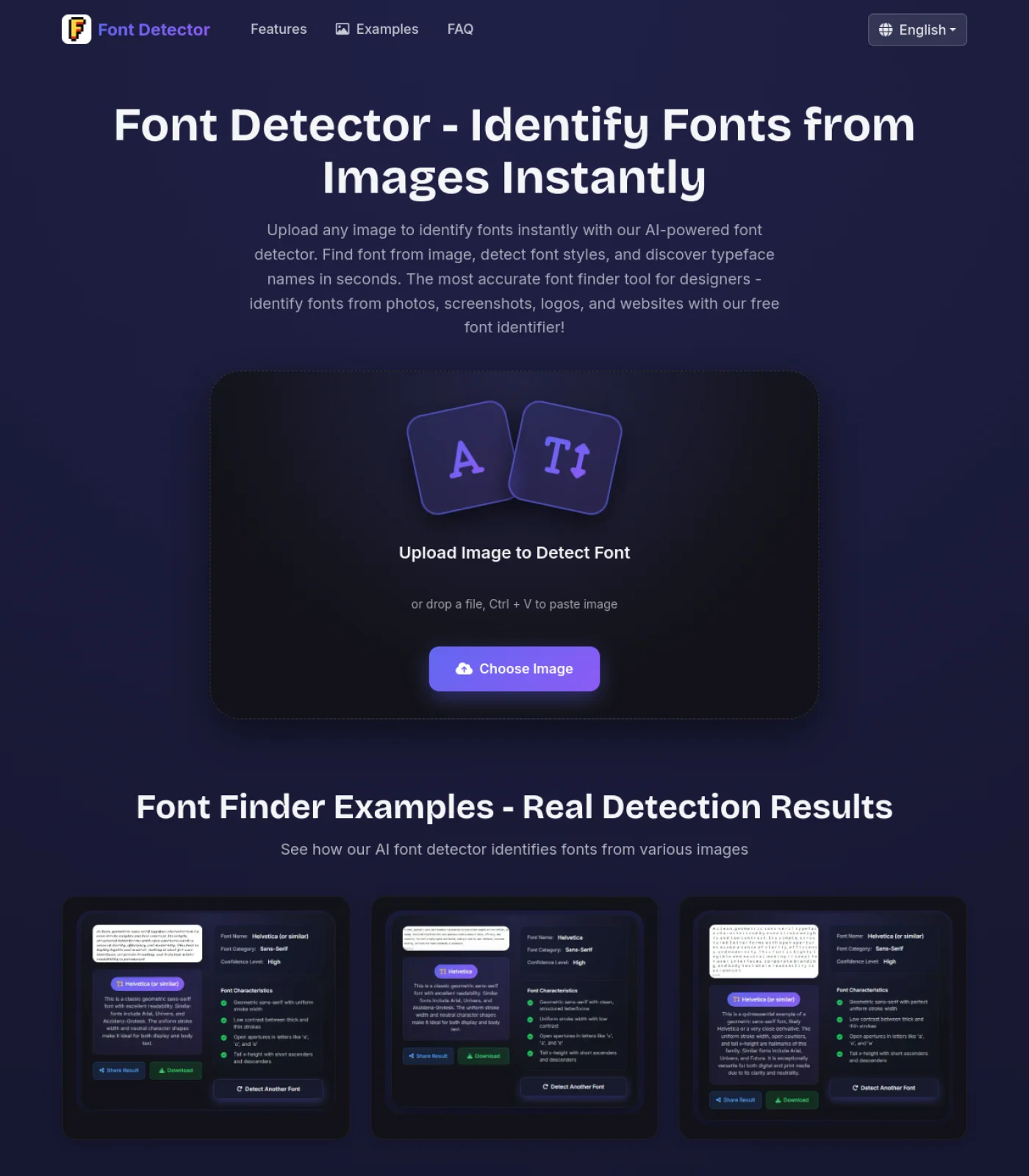
Canva Font Finder from Image

Upload a Canva screenshot, logo, template preview, social post, or exported design image to identify the visible font and find similar fonts you can search for in Canva. This Canva font finder is built for flattened PNG, JPG, screenshot, and client asset workflows where the original text layer is not available.

Upload a Canva Image or Screenshot

Drop a Canva export, paste a screenshot, or choose an image file

Canva Font Finder Examples

Use the Canva font finder for exported social graphics, template previews, logo screenshots, YouTube thumbnails, posters, flyers, and old Canva PNG or JPG files where the text layer is no longer available.

Canva font finder example showing a social media design headline
Font finder for Canva example with a poster style text sample
Canva font detector example with a logo and design export

How to Use the Canva Font Finder

Step 1

Crop the Canva Design Around the Clearest Text

Start with the part of the Canva design that shows the font most clearly. A Canva font finder works best when you crop around one headline, logo wordmark, quote, button label, or short phrase instead of uploading a crowded full-page design. If the design contains several font styles, analyze them one at a time.

Step 2

Upload the Screenshot, Logo, or Exported Canva Image

Choose a Canva screenshot, exported PNG, JPG, template preview, brand asset, or client logo image. The tool reads the visible typography as an image, which is useful when the original Canva file is missing, the text layer is no longer editable, or you only received a flattened social post.

Step 3

Review the Match and Search the Font in Canva

After the font finder for Canva returns a likely match, search that font name in Canva first. If the exact font is not available, compare the suggested similar fonts and test the closest option in your design. If you own the proper font file and license, Brand Kit may be the next step.

When a Canva Font Finder Is the Right Tool

The strongest intent behind this page is practical: users have a Canva-looking image and need a font name or a close Canva alternative. These are the highest-value cases this Canva font finder is built for.

You Only Have a Flattened Canva Export

Many Canva projects end up as PNG or JPG files. A team member exports a social post, a freelancer sends a preview, or an old campaign folder contains only final images. A Canva font finder from image helps recover the most likely font so you can rebuild the design or keep a campaign visually consistent.

You Want to Recreate a Canva Template Style

Template inspiration is one of the most common reasons people search for a Canva font detector. You might see a poster, media kit, quote graphic, presentation cover, or Instagram carousel and want to reproduce the same typography. Upload the screenshot and use the result as a practical shortlist of similar Canva fonts.

A Client Sent a Logo or Brand Asset

Small businesses often send a logo image, flyer, or social graphic without a brand guide. This workflow helps identify the visible typeface and explains whether the match looks exact, close, or uncertain, so you can search Canva, request the original file, or choose a similar font.

You Need Similar Canva Fonts Fast

The exact font is not always available in Canva. It may be paid, custom, modified, or outside Canva's library. A useful Canva font finder should still help by suggesting similar fonts with matching weight, width, spacing, and personality.

Canva Font Finder vs Canva Font Search vs Brand Kit

People often mix together several Canva font workflows. The right method depends on whether you already know the font name, have an editable Canva file, or only have an image.

Known-Name Workflow

Canva Font Search

Canva font search is useful when you already know the font name or a close name to test. After using a font finder for Canva, search the returned name in Canva and compare how it looks in your design.

  • Best when you already know the font name
  • Fast for checking Canva library availability
  • Useful for testing similar alternatives manually
  • Does not identify a font from a flattened image by itself

Best for: checking whether a detected font or alternative exists inside Canva

Brand Workflow

Canva Brand Kit

Brand Kit is useful for storing approved brand fonts, colors, logos, and design assets. A Canva font detector can help identify the candidate font first, but it should not be treated as permission to upload or use a commercial font without rights.

  • Best for approved brand typography
  • Useful when teams need consistent Canva designs
  • Requires a compatible account and licensed font file
  • Does not replace font identification from screenshots

Best for: teams managing brand fonts, logos, colors, and reusable Canva assets

Does Canva Have a Built-In Font Finder?

Canva has a large font library, a font search menu, Brand Kit features, and AI tools that can work with text in images in some workflows. Those features are not the same as a dedicated Canva font finder that identifies the typeface from a random screenshot, logo, or flattened PNG. If you still have the editable Canva file, checking the text layer is best. If you only have an image, visual font recognition is the cleaner path.

Canva font finder explaining the difference between font search and image font detection

Find Canva Fonts from Screenshots, Logos, and Social Posts

A Canva font finder by image is most valuable when the design is already exported. Social posts, YouTube thumbnails, flyers, product graphics, template previews, and logo screenshots often contain typography that is visible but not editable. The tool compares letter shapes, stroke weight, spacing, x-height, and proportions so you can turn inspiration into a practical Canva font shortlist.

Identify font from Canva screenshot with visible social design typography

Find Similar Canva Fonts When the Exact Match Is Missing

Font identification from images should be useful even when the result is not perfect. Canva designs often use decorative display fonts, custom lettering, compressed exports, shadows, outlines, or manual spacing. If the exact font is not in Canva, compare the suggested similar fonts with the same word in your design. The best replacement usually matches weight, width, rhythm, and personality.

Find similar Canva fonts when exact font is unavailable

Use the Result Responsibly in Your Canva Workflow

A font match is a design clue, not a license. If the Canva font finder identifies a commercial family or custom brand font, make sure you have permission before using it in client work. In many cases, choosing a similar font already available in Canva is faster and safer. For brand work, use the result to ask for the original file, check the brand guide, or set up an approved Brand Kit.

Canva font finder result used responsibly in a Canva design workflow

Canva Font Finder FAQ

Does Canva have a font finder?

Canva has a font search menu and Brand Kit features, and some Canva tools can help work with text in images. But if you only have a flattened screenshot, logo, or exported image, Canva does not simply reveal the original font name like an editable text layer would. A Canva font finder from image fills that gap by analyzing visible letterforms.

Can Canva identify a font from an image?

Canva can support image and text workflows, but identifying the exact typeface from any external image is different from editing text or searching a known font name. If you need to identify font from a Canva screenshot, exported PNG, JPG, logo, or template preview, use an image-based font finder first.

How do I find a font from a Canva screenshot?

Crop the screenshot around the clearest text, upload it to this Canva font finder, review the primary match and confidence level, then search the font name in Canva. If the exact font is missing, test the suggested alternatives with the same word or phrase.

What if the detected font is not available in Canva?

Use the similar fonts suggested by the result, search Canva for close alternatives, or upload the licensed font through a Brand Kit workflow if your account supports it. The best replacement usually matches the original role: headline, logo, quote, button label, or body text.

Can I use this as a font detector for Canva logos?

Yes, as long as the logo text is clear enough to analyze. Logo lettering can be custom, modified, or hand-adjusted, so the result may be a close visual match rather than an exact family name. For logos, pay attention to unusual terminals, spacing, rounded corners, and contrast.

How can I get better results from the Canva font detector?

Use a high-resolution image, crop around one font style, avoid blurry exports, and choose text with several distinct letters. If your design contains shadows, outlines, gradients, or heavy effects, try uploading a cleaner crop or another word from the same design.