Table of Contents
- Quick answer: what font is this?
- Why Font Identification Matters
- Before You Start: Image Quality Checklist
- Method 1: AI Font Detector (Fastest)
- Method 2: WhatTheFont by MyFonts
- Method 3: Browser Extensions (for Websites)
- Method 4: Adobe Fonts & Photoshop
- Method 5: Manual & Community Help
- Side-by-Side Comparison
- When Nothing Works: Troubleshooting
- FAQ
Quick Answer: What Font Is This?
Use the source of the sample to answer what font is this: image-based tools for pixels, browser inspection for live text, and file properties for editable or embedded text.
| What you have | Best next step | Why it works |
|---|---|---|
| Screenshot, logo, or poster image | Use Font Detector first | The text is visual, so letterform matching is faster than file inspection. |
| Website screenshot | Use Website Font Detector or DevTools | A screenshot needs visual matching; a live page can also reveal CSS font-family values. |
| PDF page or scan | Use PDF Font Finder, then metadata if needed | Scans and flattened PDFs need visual matching, while digital PDFs may contain embedded font lists. |
| Canva export | Use Canva Font Finder and test alternatives | The original text layer may be gone, so a practical Canva substitute is often the goal. |
Which Font Identification Method Should You Start With?
Keep the workflow narrow: use the homepage font detector for image uploads, the website detector for live CSS, the Canva guide for Canva-specific searches, and this guide when you need to choose the right method before comparing results.
What Font Is This? Start with the Evidence You Have
If you are asking what font is this, first identify where the letters came from. An image, logo, PDF, Canva export, Cricut screenshot, and live website expose different clues, so the best font-finding method changes with the source.
For an image, the practical goal is to identify the font from the image and then verify the closest matches by letter shape, weight, width, and spacing. For a live website or editable file, reading the actual font metadata is usually more reliable than guessing from a screenshot.
The Core Insight
Choose the method that matches the evidence. A clean text crop is ideal for an image font finder; selectable text or CSS can reveal the exact font directly.
Before You Start: Improve the Evidence
Quick answer for “what font is this?”
If you only have an image, crop one clear word or line and use an image font finder. If you have a live website, inspect the CSS. If you have a PDF or editable design, check its embedded or selected font information first.
The clearer the evidence, the easier it is to identify a font from an image or confirm the exact family from a file. Remove distractions before choosing a method.
| Factor | Ideal | Avoid | Impact on Accuracy |
|---|---|---|---|
| Resolution | 800px+ width, sharp edges | Blurry, compressed JPEGs | High |
| Contrast | Dark text on light background (or vice versa) | Text on busy patterns or gradients | High |
| Angle | Straight-on, horizontal text | Angled, perspective-distorted text | High |
| Text length | 5+ characters, mix of upper and lowercase | Single letters, all-caps short words | Medium |
| Cropping | Tight crop to a single line of text | Multiple font styles in one image | Medium |
| Lighting | Even, diffused light | Harsh shadows, glare, uneven exposure | Medium |
One practical tip: if you're working from a photo taken at an angle, use your phone's built-in perspective correction or a free tool like Snapseed to straighten the text before uploading. This alone can dramatically improve results.
Method 1: AI Font Detector — The Fastest Way to Identify Any Font
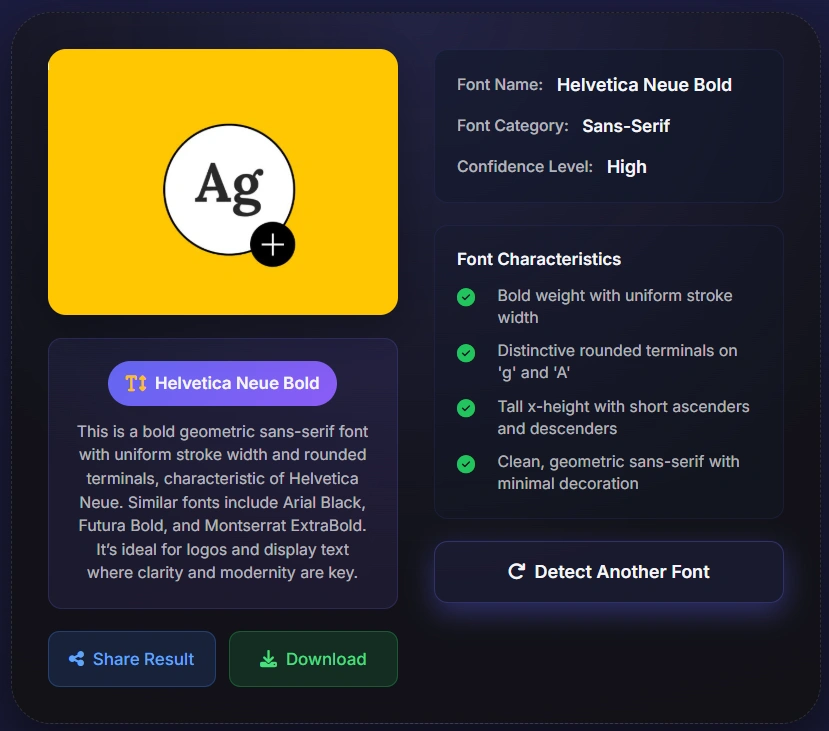
For a screenshot, logo, poster, phone capture, or flattened design, an image font finder is the fastest starting point. It compares the visible letterforms and returns likely matches, which you can then verify in the original context.
How to Use Font Detector
- Go to fontdetector.org — no account or signup required.
- Click 'Choose Image' or drag and drop your file directly onto the upload area. You can also paste an image with Ctrl+V.
- Wait 5–25 seconds while the AI analyzes the text characteristics in your image.
- Review your results: you'll get the font name, category (serif, sans-serif, script, display), confidence score, and visually similar alternatives.
- If the exact font isn't available for free, the tool suggests comparable alternatives you can download immediately.
Best For
Photos, screenshots, logos, posters, and any static image. Works with all font types including serif, sans-serif, script, display, and decorative fonts. Completely free with no usage limits.
Use this method when you have an image
Use this method when you have a screenshot, logo, poster, packaging photo, social graphic, phone message screenshot, Canva export, Cricut preview, scanned document, or flattened PDF. If the image contains several typefaces, crop only the word or heading you want to identify before uploading.
What sets a good AI font detector apart from a mediocre one is the quality of its training data and how it handles ambiguous cases. The best tools don't just give you one answer — they show you a confidence score and a ranked list of alternatives, which is far more useful when you're dealing with a custom or modified typeface.
Method 2: WhatTheFont by MyFonts — The Industry Standard for Commercial Fonts
WhatTheFont, created by MyFonts and developed by Kevin Woodward, has been the go-to font identification tool for designers since the early 2000s. It's powered by a database of over 900,000 fonts — one of the largest in the industry — and is particularly strong at identifying commercial and professional typefaces. If you're trying to identify a font from a brand identity, editorial design, or premium packaging, WhatTheFont is worth trying alongside an AI tool.
How to Use WhatTheFont
- Visit myfonts.com/pages/whatthefont.
- Upload your image or paste an image URL.
- Crop the image to a single line of text for best results.
- The tool will analyze the letterforms and return a ranked list of font matches.
- If the automatic match fails, you can submit your image to the WhatTheFont forum where typography experts will help identify it manually.
WhatTheFont: Pros & Cons
✅ Pros
- Massive database of 900,000+ fonts
- Excellent for commercial and professional typefaces
- Community forum as a fallback for difficult cases
- Free to use for identification
❌ Cons
- Skews toward paid/commercial fonts — free font coverage is weaker
- Requires manual cropping for best results
- Can struggle with decorative or heavily stylized fonts
- Results link to MyFonts purchase pages
Method 3: Browser Extensions — The Instant Answer for Website Fonts
If you're trying to identify a font on a live website — not from an image — browser extensions are by far the most accurate and fastest method. They read the actual CSS font-family property directly from the page source, which means you get the exact font name every single time, with zero guesswork.
The Best Font Identification Extensions
- WhatFont (Chrome & Safari): The most popular option. Hover over any text on a webpage and it instantly displays the font name, size, weight, and color. Free and lightweight.
- Fonts Ninja (Chrome, Firefox, Safari): More feature-rich than WhatFont. Shows font details, lets you try fonts directly in the browser, and has a database of 3,000+ fonts with direct download links.
- Fontanello (Chrome & Firefox): Designed for developers. Right-click any text to see full CSS font properties including fallback fonts and font-display settings.
How to Use a Font Extension
- Install your chosen extension from the Chrome Web Store or Firefox Add-ons.
- Navigate to the website with the font you want to identify.
- Click the extension icon to activate it.
- Hover over the text — the font name and details appear instantly.
- Click the font name to search for it or find download options.
Pro Tip
Browser extensions only work on live websites — they can't analyze images or PDFs. For anything that isn't a live webpage, use an AI font detector or WhatTheFont instead.
Method 4: Adobe Fonts & Photoshop — The Creative Cloud Workflow
If you're already in the Adobe ecosystem, you have two powerful font identification options built right into your existing tools. These are particularly useful when you want to identify a font and immediately start using it in your design work without switching between apps.
Adobe Fonts Visual Search
Adobe Fonts includes a visual search feature powered by Adobe Sensei (Adobe's AI platform) that lets you upload an image and find matching fonts directly in the Adobe Fonts library. Fonts you select are immediately available in Photoshop, Illustrator, InDesign, and other Creative Cloud apps.
- Go to fonts.adobe.com and click 'Visual Search' (or use the search bar and select the image upload option).
- Upload a cropped image of the text you want to identify.
- Adobe Sensei analyzes the letterforms and returns matching fonts from the Adobe Fonts library.
- Click 'Activate' on any font to add it instantly to your Creative Cloud apps.
Photoshop Match Font
Photoshop's built-in Match Font feature (introduced in 2015) lets you identify fonts directly within your design workflow. It's particularly useful when you're working with a layered file and need to match an existing text element.
- Open your image in Photoshop.
- Use the Rectangular Marquee Tool (M) to draw a selection around the text you want to identify.
- Go to Type > Match Font in the menu bar.
- Photoshop will show matching fonts from both your installed library and Adobe Fonts.
- Click the cloud icon next to any Adobe Fonts result to activate it immediately.
Both tools require an active Adobe Creative Cloud subscription. For detailed instructions, see the Adobe Fonts official visual search documentation.
Method 5: Manual Identification & Community Help — The Last Resort (That Actually Works)
Sometimes, no automated tool can identify a font — especially if it's custom-designed, heavily modified, or a very obscure typeface. In these cases, manual identification methods and community resources are surprisingly effective.
Identifont: The 20-Questions Approach
Identifont (identifont.com) takes a completely different approach to font identification. Instead of analyzing an image, it asks you a series of questions about the visual characteristics of the font — does it have serifs? What shape is the letter 'Q'? How does the lowercase 'g' look? By answering 10–20 questions, you can narrow down the font even without a clear image. It's slower, but remarkably effective for fonts that defeat image-based tools.
Browser Developer Tools: 100% Accurate for Web Fonts
For any font on a live website, your browser's developer tools give you the exact font name with zero ambiguity — no AI required.
- Right-click on the text you want to identify and select 'Inspect' (or press F12).
- In the Elements panel, find the text element.
- Click the 'Computed' tab in the Styles panel.
- Look for the 'font-family' property — this shows the exact font being used.
- Copy the font name and search for it on Google Fonts, Adobe Fonts, or your preferred font source.
Reddit r/identifythisfont: Human Expertise for the Impossible Cases
When every tool fails, the typography community on Reddit often succeeds. The subreddit r/identifythisfont has hundreds of thousands of members — including professional type designers and typographers — who can identify fonts from even the most challenging images. Post a clear photo with as much context as possible (where you saw it, approximate era, industry) and you'll usually get an answer within a few hours.
Side-by-Side Comparison: Which Method Should You Use?
Here's a quick reference guide to help you choose the right method for your situation:
Which Font Identification Method Should You Start With?
Keep the workflow narrow: use the homepage font detector for image uploads, the website detector for live CSS, the Canva guide for Canva-specific searches, and this guide when you need to choose the right method before comparing results.
| Source | Start with | Why |
|---|---|---|
| Screenshot, logo, poster, or image | AI Font Detector | It compares visible letter shapes and returns likely font names plus similar alternatives. |
| Live website text | Browser extension or DevTools | It can read the page's CSS font-family value, which is more reliable than image matching. |
| Selectable PDF | PDF font properties | Embedded font metadata can reveal the exact font without visual guessing. |
| Blurry photo or custom logo | AI suggestions plus manual comparison | The exact typeface may be unavailable, so close visual alternatives are often the practical result. |
| Method | Best For | Free? | Speed | Accuracy | Requires |
|---|---|---|---|---|---|
| AI Font Detector (fontdetector.org) | Any static image | ✅ Yes | ⚡ 5–25 sec | ⭐⭐⭐⭐⭐ | Image file |
| WhatTheFont by MyFonts | Commercial & professional fonts | ✅ Yes | 🕐 ~30 sec | ⭐⭐⭐⭐ | Image file |
| Browser Extension (WhatFont) | Live websites | ✅ Yes | ⚡ Instant | ⭐⭐⭐⭐⭐ | Chrome/Firefox |
| Adobe Fonts Visual Search | Creative Cloud users | ❌ CC subscription | 🕐 ~30 sec | ⭐⭐⭐⭐ | Adobe CC account |
| Photoshop Match Font | Designers in PS workflow | ❌ PS subscription | 🕐 ~20 sec | ⭐⭐⭐⭐ | Photoshop |
| Browser DevTools | Web fonts (100% accurate) | ✅ Yes | ⚡ Instant | ⭐⭐⭐⭐⭐ | Any browser |
| Identifont | No clear image available | ✅ Yes | 🐢 5–10 min | ⭐⭐⭐ | Knowledge of font features |
| Reddit: r/identifythisfont | Custom / impossible cases | ✅ Yes | 🐢 Hours | ⭐⭐⭐⭐⭐ | Reddit account |
When Nothing Works: Troubleshooting Font Identification
Even with the best tools and a good image, some fonts resist identification. Here are the most common reasons and what to do about them:
The font might be custom-designed
Many major brands commission custom typefaces that aren't in any public database. Nike's custom font, for example, won't appear in WhatTheFont or any AI tool. In this case, look for 'similar fonts' suggestions — the tool may not find the exact match, but it can point you toward typefaces with the same visual character. Alternatively, search '[Brand Name] font' — many brands publish their typography guidelines publicly.
The font has been heavily modified
Designers often modify existing fonts — stretching, condensing, adding custom ligatures, or altering individual letterforms. If a font looks almost-but-not-quite like a known typeface, it probably is that typeface with modifications. Try identifying it anyway and then look for the 'extended' or 'condensed' variant of the result.
The image quality is too low
If you're working from a low-resolution image, try to find a higher-quality version of the source. For logos, check the brand's official website, press kit, or LinkedIn page — these often have higher-resolution versions. For printed materials, try photographing them again in better lighting with your phone's camera held steady.
It might be hand-lettering, not a font
Hand-lettered typography — especially in logos, packaging, and artisanal brands — is often mistaken for a font. If every tool returns low-confidence results or wildly different suggestions, the 'font' might actually be custom lettering. In this case, look for fonts that capture the same style and spirit rather than an exact match.
Final Thoughts: The Right Tool for the Right Job
Font identification in 2026 is genuinely impressive — what used to take a designer hours of manual comparison can now be done in seconds with the right AI tool. But the key word is 'right.' Each of the five methods in this guide has its sweet spot: AI tools for speed and versatility, WhatTheFont for commercial typefaces, browser extensions for live websites, Adobe tools for Creative Cloud workflows, and manual methods for the cases that defeat everything else.
My personal workflow: I always start with an AI font detector for any image-based identification. If that doesn't give me a confident result, I try WhatTheFont. If I'm on a live website, I go straight to a browser extension. And if all else fails, the Reddit community has never let me down.
Remember
The goal isn't always to find the exact font — sometimes finding a great alternative is even better. A font that's freely available on Google Fonts and captures the same spirit as an expensive commercial typeface is often the more practical choice for real-world projects.
Frequently Asked Questions
About the Author

Emily Chen
Design & typography writer, 9+ years covering AI tools and creative workflows.
Emily Chen is a design journalist and typography enthusiast who has spent nearly a decade writing about creative tools, AI applications, and visual communication. She has contributed to leading design publications and regularly tests font identification tools for her freelance clients. When she's not hunting down obscure typefaces, she's probably reorganizing her font library — again.
References & Sources
- MyFonts WhatTheFont — Font identification tool by MyFonts — https://www.myfonts.com/pages/whatthefont
- Adobe Fonts Visual Search — Official documentation, Adobe Help Center (updated February 2025) — https://helpx.adobe.com/fonts/using/visual-search-adobe-fonts.html
- Font Squirrel Matcherator — Powered by Fontspring — https://www.fontsquirrel.com/matcherator
- Inkbot Design — The 10 Best Tools For Identifying Fonts (March 2026) — https://inkbotdesign.com/best-tools-for-identifying-fonts/
- Reddit r/identifythisfont — Community font identification — https://www.reddit.com/r/identifythisfont/
- Adobe Font Finder: Photoshop, Illustrator, and Adobe Fonts Workflow — https://fontdetector.org/blog/adobe-font-finder/
- Logo Font Finder: Identify a Font from a Logo Image — https://fontdetector.org/blog/logo-font-finder/
Last updated: August 13, 2026