
On this page
Choose the Right Canva Font Detector Method
The phrase canva font detector covers two different jobs: reading a font from a live Canva text layer and recognizing letterforms from a flattened image. Start by identifying what you actually have. This prevents a visual tool from guessing when Canva already exposes the exact name, and it prevents a text-layer workflow from being used on a logo that is only pixels.
| What you have | First step | Why it fits |
|---|---|---|
| Editable Canva design | Select the text layer | The font name, weight, size, and style may be available directly. |
| PNG, JPG, or screenshot | Crop the clearest text | The typeface is visible, but the original text metadata is gone. |
| Logo or brand asset | Inspect letter shapes | Logo lettering may be customized even when it resembles a known font. |
| Template preview | Check the source if possible | A preview can show a font without revealing the editable text settings. |
The practical rule
Use Canva controls for live text and image matching for flattened text. When the design matters, use both: the name gives you a lead, while the rendered letters confirm whether it really looks right.
Check the Editable Canva Design First
If you own or can open the original Canva design, this is the fastest and most accurate route. Click the headline, caption, button label, or other text object and read the font family shown in the editor. Record the weight and style as well as the family name. A design may use a regular cut for body copy, a bold cut for headings, and a different font for a logo-like wordmark.
Do not assume that every letter on the canvas is editable text. A pasted screenshot, uploaded logo, flattened group, or exported graphic can look like a text layer while behaving like an image. Try to place the cursor inside the letters. If you cannot select the characters or change one letter without moving the whole picture, switch to the image workflow.
- Select the exact object: Check the text role you want to reproduce instead of reading the default document font.
- Record the style: Note weight, italic or condensed settings, size, spacing, and capitalization.
- Check text effects: Outlines, shadows, curves, and stretching can make a familiar font look different.
- Separate brand lettering: A logo may be custom-drawn and should not be treated as an ordinary Canva font.
How to Find the Font Inside Canva
When the file is still editable, use a short inspection routine rather than searching through every font in the menu. The goal is to identify the text object, capture its settings, and test the result in context.
- Open the design and click the exact text element that contains the font you want to identify.
- Read the family name in the font control, then note the weight, style, letter spacing, line height, and text effects that affect its appearance.
- Repeat the check on a second heading or paragraph. Canva designs often combine a display face with a simpler body face.
- Copy a short sample word into a new text box and compare it beside the original at the same size and weight.
- If the font is missing from the menu, check whether the source used an uploaded brand font, a template-only asset, or an image rather than live text.
Why the name is not the whole answer
Two text layers can share a family name but look different because of weight, tracking, effects, curvature, or manual edits. Save a screenshot of the settings and a crop of the rendered letters so another person can reproduce the decision.
Use a Screenshot or Image Font Detector
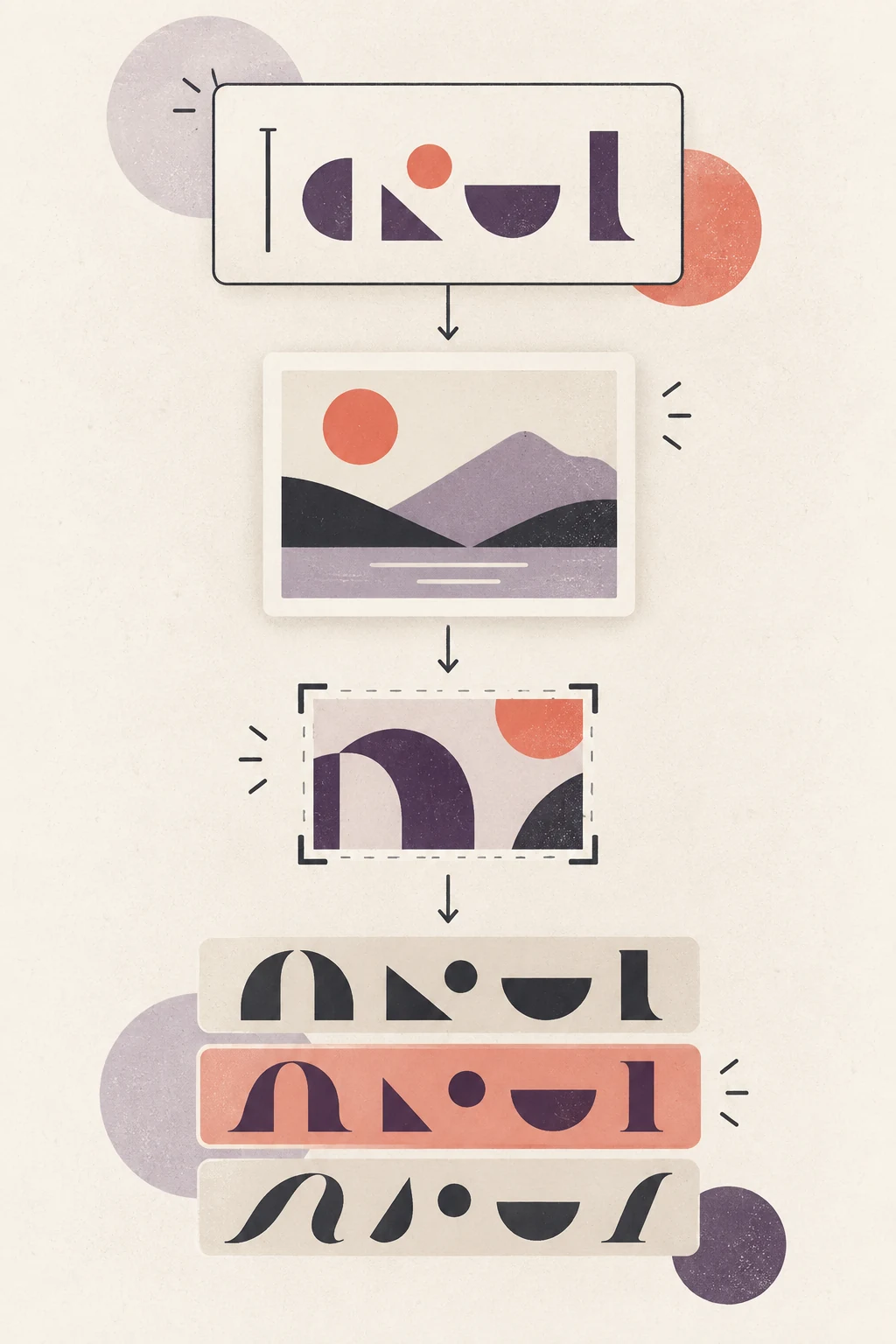
If the Canva design was exported, shared as a preview, or sent as a screenshot, the original font settings may no longer be available. A canva font finder from image can still give you a useful starting point by comparing the visible letterforms. It cannot restore hidden metadata, so treat the result as a ranked hypothesis rather than proof of the original family.
Start with one font style at a time. A full social graphic may contain a headline, body copy, logo, stickers, and decorative lettering. Mixing all of those elements in one upload makes the result harder to interpret. Crop a short but distinctive word, keep the letters sharp, and avoid placing icons or photos across the sample.
- Crop tightly: Keep one line or one word with enough repeated letter shapes to compare.
- Use a clear export: A high-resolution PNG usually gives cleaner edges than a compressed screenshot.
- Avoid heavy effects: Try a second crop without shadows, outlines, gradients, or filters when possible.
- Analyze styles separately: Run a headline and body sample as separate checks if the design uses more than one family.
For a flattened Canva sample, open the Canva Font Finderto compare the visible typography and review similar fonts you can test in Canva.
How to Verify a Canva Font Match
A detector result is more useful when you verify it against the original design. Compare the same word or phrase instead of judging a font name in isolation. The closest match usually preserves the rhythm and proportions that make the design recognizable.
- Distinctive letters: Compare shapes such as a, g, R, e, t, and numerals that reveal the family.
- Width and rhythm: Check whether the replacement is too wide, too narrow, too tight, or too loose.
- Weight and contrast: A similar family can still fail if its strokes are lighter, darker, or more contrasted.
- Context: Test the font at the original size, color, line length, and role in the design.
| Stage | Question | Action |
|---|---|---|
| Candidate | Does the overall category feel right? | Keep the closest family and one or two alternatives. |
| Letterform | Do distinctive letters share the same construction? | Reject matches that fail on repeated shapes. |
| Layout | Does the word occupy the same width? | Adjust tracking only after the family and weight are close. |
| Use | Can the font be used in this project? | Confirm availability and licensing before delivery. |
Rebuild the Canva Design Without Losing Its Look
The goal is not always to recover a perfect name. Sometimes you need a close Canva alternative that preserves the design's role and hierarchy. Rebuild one small sample before replacing the font across the whole project.
- Duplicate the design or create a test page so the original remains unchanged.
- Set the candidate font at the original size, weight, color, and line spacing.
- Compare the width of the same headline and check line breaks before changing the text box.
- Adjust tracking, line height, or text effects only after you decide that the family is visually close.
- Check the design at the final export size. A font that looks close on a large canvas may lose its character in a small social post.
Check Licensing and Brand Use
Finding a font name does not give you permission to download, embed, modify, or distribute that font. This matters when a Canva design becomes a logo, client deliverable, paid advertisement, app interface, or downloadable template. Check the foundry, marketplace, Canva account terms, or brand guide that supplied the typeface.
If the exact family is unavailable, a similar font already available in Canva may be the safer production choice. Record why you selected it, which roles it covers, and whether a brand owner approved the replacement. A clear substitution note is more useful than silently changing the typeface and hoping nobody notices.
Common Canva Font-Finding Mistakes
Most poor matches come from using the wrong evidence or asking one result to answer too much. These fixes make the next attempt more reliable.
Uploading the entire busy design
Crop one headline or text role. Photos, icons, and several font families make visual comparison noisy.
Treating a logo as ordinary text
Look for custom spacing, altered letters, and hand-drawn shapes before searching for a standard family.
Ignoring weight and spacing
Test the same family at the original weight and tracking; a regular cut is not interchangeable with a heavy display cut.
Using the first result as certain
Compare distinctive letters and keep a close alternative when the image is small, stylized, or compressed.
Canva Font Detector FAQ
Helpful References
- Canva Help Center for font and design guidance — Canva Help
- Font Detector's practical image-based Canva tool — Canva Font Finder
Last updated: September 20, 2026
Back to Font Detector