
Table of Contents
What a Shopify Font Detector Can Actually Tell You
A Shopify font detector is not one single button. The useful method depends on whether you own the store, can open the theme editor, can inspect the live page, or only have a screenshot. Shopify stores can use fonts from Shopify’s library, system fonts, a third-party service, or files uploaded into a theme. Each source leaves different evidence.
If you manage the store, the theme editor is usually the cleanest starting point because it shows the settings that control the theme. A heading font and a body font may be selected separately, and individual sections can override the global choice. Record both the family and the weight instead of writing down only a name.
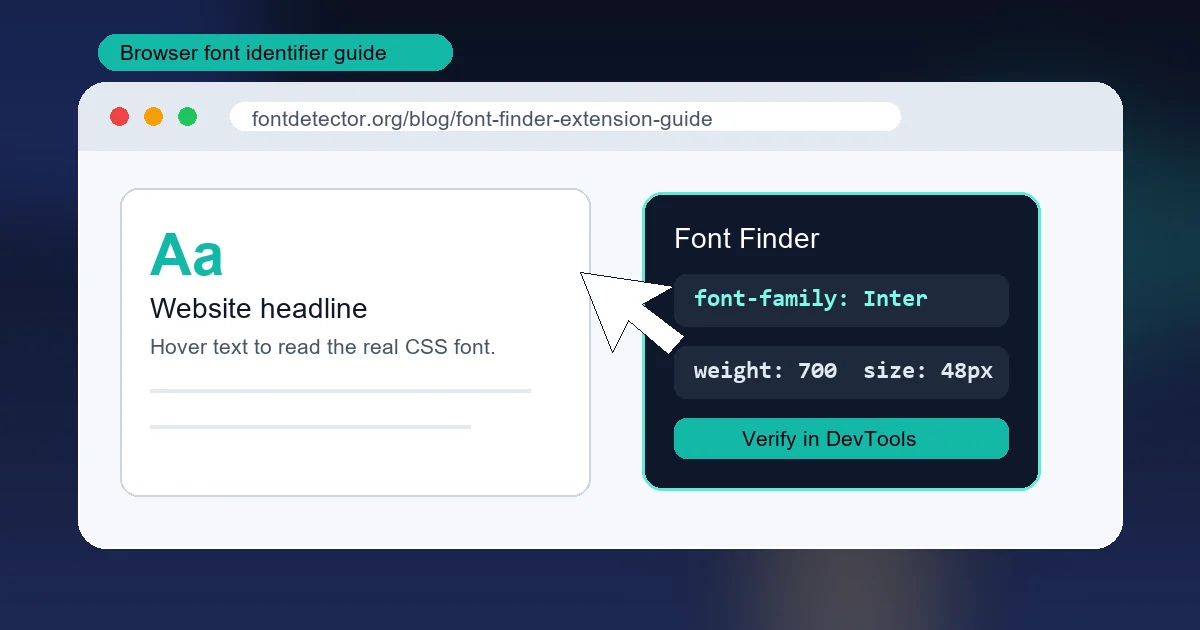
If you are studying another store, you will not have access to its admin settings. The public page still exposes useful rendered evidence through HTML and CSS. Browser developer tools can show the selected element, its computed font-family, its font-size, weight, line-height, and fallback stack. That is often more accurate than matching a screenshot.
Best starting point
Use Theme settings for a store you control, DevTools for a live store, and image detection only for text that is no longer live HTML.
Check Fonts in the Shopify Theme Editor
Shopify’s current theme editor places global typography controls inside Theme settings, although the exact labels can vary by theme and version. The setting normally affects the whole storefront, while a section or block can introduce a more specific override. This makes the editor the best source of truth for a store owner who needs to change a font rather than merely identify it.
Before changing anything, open the theme preview and note which text you are checking: navigation, product titles, body copy, buttons, announcement bars, and footer text may not share one rule. A theme can use one family for headings and another for body text, with a separate style for buttons or prices.
- In Shopify admin, open Online Store and then Themes. Locate the theme you want to examine and choose Customize or Edit theme.
- Open the Theme settings panel in the editor sidebar. Look for Typography, Fonts, or a similarly named section supplied by the theme.
- Read the selected Heading and Body font controls separately. Record the family, style, weight, and any size setting shown next to each control.
- Open a few representative templates, including a product page and a collection page. Check whether a section has its own typography control that overrides the global setting.
- Preview the draft on desktop and mobile, then save only after checking line breaks, buttons, prices, navigation, and any non-Latin text you need to support.
Inspect a Live Shopify Store
In Computed styles, search for font-family, font-size, font-weight, and font-style. The first family in the computed stack is the preferred face, but the browser may use a fallback if that face does not contain the required glyphs or if the font file failed to load. The Styles panel helps you find the selector and theme stylesheet that supplied the rule.
Repeat the check on a heading, body paragraph, button, and price. Shopify themes often assign different variables or utility classes to those roles. If every element reports the same family, you have stronger evidence that the theme uses one global stack; if not, record the role-specific mapping.
- Open the public Shopify URL and wait for the text and web fonts to finish loading. Test a normal page, not only a preview link that may require a session.
- Right-click a live heading or paragraph and choose Inspect. Confirm that the selected node contains real text rather than an image or canvas drawing.
- Open the Computed tab and search for font-family. Copy the complete stack, including quoted family names and generic fallbacks such as sans-serif or serif.
- Read font-weight, font-style, line-height, and font-size as well. These values explain why a family can look different from a screenshot or from the theme editor preview.
- Switch to the Fonts view when your browser provides one. It can show the face actually used for the selected glyphs and reveal fallback behavior that the CSS declaration alone hides.
Verify the rendered face
A CSS declaration is a request, not proof that every character used that face. Compare a distinctive lowercase letter, a numeral, and any accented or non-Latin character. If the browser falls back for one of them, record the fallback separately.
Handle Custom Fonts and Font Files
When you see a custom family, inspect the Network panel and filter by Font if you need to understand the loading path. The request URL, response type, and loaded file can confirm that a face is actually being downloaded. Do not assume that a file named regular.woff2 covers bold or italic text; each weight and style can have its own source. For your own store, keep the license, format, weight, style, Unicode coverage, and performance impact in your project notes.
- Family name versus file name: Read the family declared in @font-face and the font-family used by the selector; they can differ from a filename such as brand-bold.woff2.
- Weight and style: Check whether 400, 500, 600, 700, italic, and variable axes have separate files. Synthetic bold or italic can make the rendered result look wrong.
- Unicode coverage: A family can cover Latin but fall back for Arabic, Japanese, Korean, or accented characters. Test the scripts your store actually publishes.
- Loading and licensing: Use a stable, permitted source and test the performance cost. Do not copy a commercial font file from another storefront simply because the URL is visible.
Choose the Right Shopify Font Identification Method
The fastest method changes with the evidence you have. Use the table as a routing guide, then confirm the result in the context of the storefront.
| Method | Best for | Strength | Limit |
|---|---|---|---|
| Theme editor | A store you own or can edit | Shows the selected global typography controls and supported font choices | Does not reveal every section-level CSS override |
| Browser Inspect | Live HTML text on a public store | Reveals computed CSS, weight, size, and fallback stack | Requires a rendered text node and can miss text inside images |
| Font detector extension | Quick checks across many live elements | Surfaces font details without opening every panel manually | Can report the CSS stack without proving which glyph face rendered |
| Image font detector | Logos, banners, screenshots, and flattened artwork | Creates a useful visual shortlist when no live CSS exists | Similar does not mean exact, installed, or licensed for your store |
A Reliable Shopify Font Workflow
A repeatable process makes the answer easier to explain to a client or teammate. Begin by naming the source: theme setting, live CSS, downloaded font file, or image. Then capture the exact role and page where the evidence was found. This avoids the common mistake of calling a promotional banner font the store’s body font.
Next, verify the family in at least two ways when the decision matters. For a public store, pair Computed styles with the Fonts view or the loaded network request. For your own store, pair the Theme settings value with a rendered check on a product and collection template. Agreement between source and output is more useful than a single confident label.
- 1. Name the evidence: Record whether the answer came from Theme settings, Computed CSS, a font file, or a visual match.
- 2. Map the roles: Check headings, body copy, navigation, buttons, prices, and product cards separately because themes often split them.
- 3. Confirm the render: Compare a distinctive character and a real text string at the target weight. Look for fallback and synthetic styles.
- 4. Check production fit: Review language coverage, license, loading cost, responsive line breaks, and the availability of the weights your design needs.
- 5. Document the decision: Save the family stack, selector or theme setting, page role, date checked, and replacement notes for the next person.
Common Mistakes and Limits
A Shopify font detector can narrow the search, but it cannot remove the need for source and production checks.
- Checking only the home page: The home page may use a display face while product and blog templates use another family. Inspect the template that matters.
- Reading the first CSS family as fact: The first name is preferred, but missing glyphs, blocked font files, or browser behavior can trigger fallback. Verify a real character.
- Confusing a logo image with live text: A wordmark inside PNG, SVG outlines, or a canvas cannot expose the original font through Computed styles. Use visual matching and label it as approximate.
- Ignoring weight and spacing: The same family can look unrelated at 400 versus 700, or with tight tracking versus wide tracking. Compare the complete treatment.
- Copying a font without permission: Public CSS makes a font request visible; it does not grant a license to reuse the file. Check the foundry or service terms before shipping.
- Skipping mobile testing: A font that fits a desktop hero can create wrapping, clipping, or slow loading on mobile. Test real storefront breakpoints before finalizing.
Frequently Asked Questions
Official references
Last updated: October 24, 2026
Back to Font Detector