
Indice
Perché «Adobe Font Finder» merita un workflow dedicato
Chi cerca un Adobe Font Finder di solito ha un'esigenza diversa da chi pone una domanda generica come «che font è questo?». Spesso lavora già in Photoshop, Illustrator, InDesign o Adobe Express e gli serve un risultato adatto a un flusso di produzione attivo, non solo il nome di un carattere in un elenco.
Questo intento conta perché gli strumenti Adobe sono più vicini a licenze, attivazione e verifica del layout. Se devi ricostruire un titolo rasterizzato in Photoshop, ricreare una bozza di logo in Illustrator o sincronizzare un carattere mancante tramite Adobe Fonts, la risposta migliore non è solo «identifica il font», ma «identificalo in modo da poterlo usare o sostituire subito».
Ecco perché il percorso Adobe è diverso da un articolo generico sui rilevatori di font. Adobe può aiutarti a creare una lista di font utilizzabili e a lavorare più velocemente nello stack di design, ma non è un motore magico di ricerca inversa per ogni screenshot. Servono comunque un ritaglio pulito, aspettative realistiche su ciò che Adobe può confermare e un piano alternativo quando la corrispondenza è solo approssimativa.
Caso d'uso ideale
Scegli il percorso Adobe quando il passaggio successivo è la produzione: sincronizzare un font, ricostruire una composizione, sostituire un testo mancante o consegnare una shortlist pulita a un altro designer o sviluppatore.
Quando iniziare con Adobe e quando partire altrove
Adobe non è sempre il primo passo. Il punto di partenza migliore dipende dalla provenienza del testo e dal livello di accesso alla fonte.
- Inizia con Adobe quando il testo appartiene a un workflow di Photoshop, Illustrator, InDesign o Adobe Express e vuoi arrivare rapidamente a un sostituto pronto per Adobe.
- Inizia con i DevTools del browser quando il testo proviene da un sito attivo. Leggere la proprietà CSS font-family è di solito più affidabile che confrontare uno screenshot.
- Inizia con un rilevatore generico basato su immagini quando la fonte è un'immagine rasterizzata, un logo esportato, una grafica social, un PDF scansionato o una foto senza file modificabile.
| Fonte | Punto di partenza migliore | Perché |
|---|---|---|
| Screenshot o logo rasterizzato | Adobe Fonts Visual Search o Font Detector | Serve una shortlist visiva prima di poter sincronizzare o sostituire qualsiasi cosa. |
| Testo di un sito attivo | DevTools o un'estensione per i font | Il valore CSS rivela il font Web esatto più velocemente del confronto visivo. |
| File PSD, AI o INDD modificabile | Controlla prima il livello di testo | Se la famiglia del font è già nei metadati del file, il confronto non serve. |
| Font mancante in Adobe | Sincronizzazione Adobe Fonts più verifica visiva | Potresti conoscere già il nome della famiglia, ma aver bisogno del sostituto attivabile più vicino. |
Il workflow pratico di Adobe Font Finder
Usa questa sequenza quando hai solo testo visibile e ti serve una risposta utile all'interno degli strumenti Adobe.
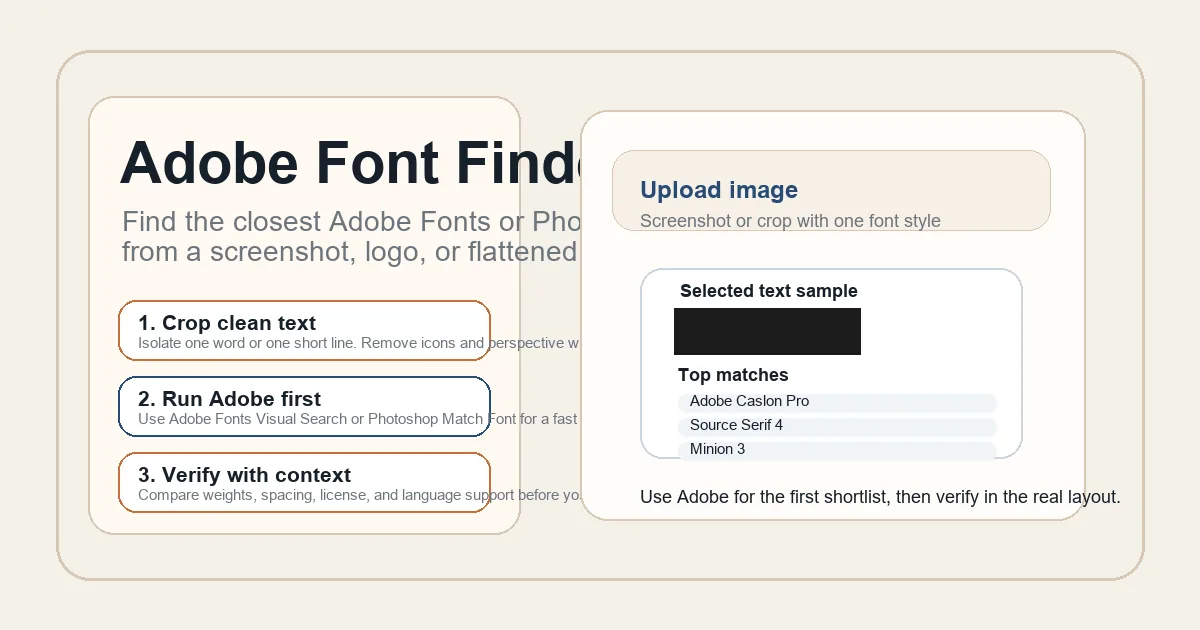
- Ritaglia una parola pulita o una riga breve. Quando possibile, elimina icone, grafiche sovrapposte, effetti decorativi e prospettiva, così le forme delle lettere restano leggibili.
- Controlla se il file di design o il sito mostra già il nome del font. Se puoi ispezionare la fonte originale, fallo prima di affidarti al riconoscimento da immagine.
- Esegui Adobe Fonts Visual Search per ottenere suggerimenti nativi di Adobe, oppure Photoshop Match Font se stai già lavorando in un workflow PSD. Salva i primi candidati invece di fidarti solo del primo risultato.
- Confronta la shortlist con dimensione e peso approssimativamente uguali a quelli dell'originale. La a e la g minuscole, i numeri, le terminazioni e la spaziatura rivelano rapidamente il candidato sbagliato.
- Valida il font scelto nella composizione reale. Prova interruzioni di riga, crenatura, copertura linguistica, corsivo e pesi disponibili prima di sincronizzare la famiglia in tutto il progetto.
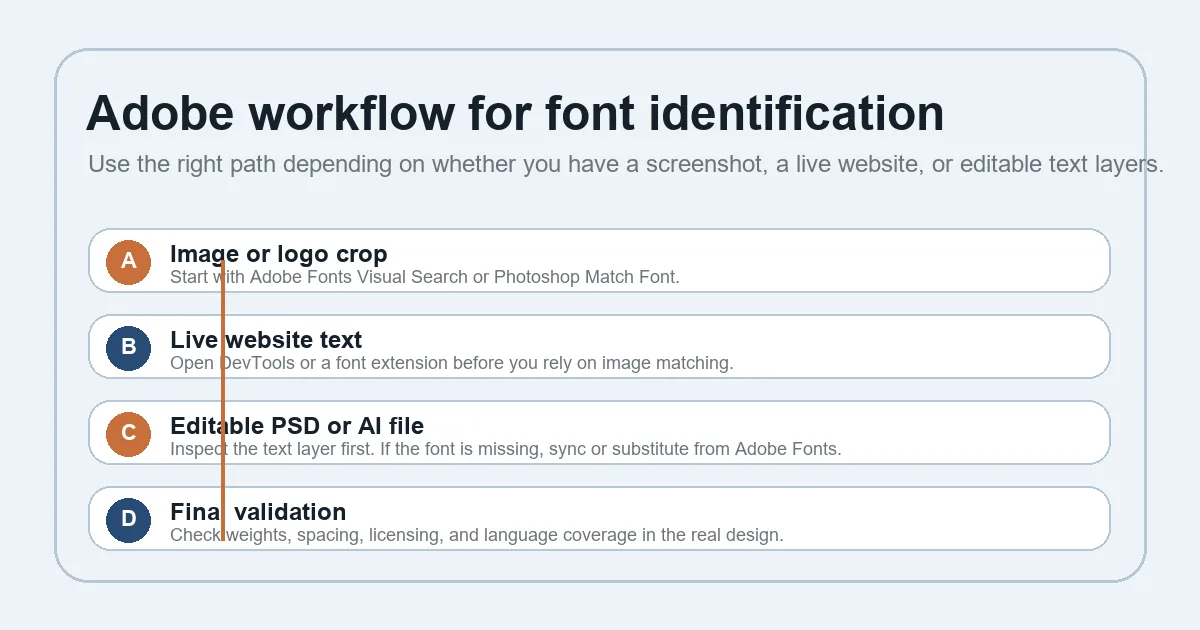
Considera il risultato una decisione di produzione, non solo un punteggio di riconoscimento. Un sostituto pronto per Adobe che preserva il layout può essere più utile di una famiglia esatta che non puoi attivare o riutilizzare legalmente.
Quali strumenti Adobe sono davvero utili
Le diverse superfici Adobe risolvono parti diverse del problema. Il workflow migliore spesso combina Adobe con una verifica esterna.
- Ricerca visiva di Adobe Fonts: Usalo quando vuoi una shortlist di famiglie Adobe Fonts simili al campione di testo e attivabili rapidamente nell'ecosistema Adobe.
- Funzione Match Font di Photoshop: Usalo quando il campione di testo si trova in un progetto Photoshop o in un'immagine inserita e vuoi che Photoshop mostri corrispondenze vicine senza uscire dal file di design.
- Ispezione dei livelli in Illustrator o InDesign: Usala prima di qualsiasi confronto quando la fonte è modificabile. Se il file contiene già la famiglia del font, l'informazione è più affidabile di una stima visiva.
- Font Detector o un altro identificatore da immagine: Usalo come seconda opinione quando Adobe restituisce una shortlist debole o quando la fonte è un'immagine rasterizzata fuori dal workflow Adobe.
Adobe e rilevatori di font generici a confronto
Adobe è forte quando vuoi un risultato che passi direttamente alla produzione di design. I rilevatori generici sono migliori quando ti serve riconoscere font in un universo più ampio.
| Metodo | Ideale per | Punto di forza | Limite principale |
|---|---|---|---|
| Ricerca visiva di Adobe Fonts | Sostituti pronti per Adobe e shortlist facili da sincronizzare | Resta vicino ai font che puoi attivare e provare nelle app Adobe | Non copre tutte le famiglie commerciali o di nicchia presenti sul Web |
| Funzione Match Font di Photoshop | Ricostruzione basata su PSD e confronto rapido nell'app | È rapido in Photoshop quando il design è già aperto | La fonte deve comunque avere un campione leggibile e il risultato può essere approssimativo |
| Strumenti per sviluppatori del browser | Live websites | Può mostrare la proprietà CSS font-family esatta invece di una supposizione | Funziona solo quando puoi ispezionare la pagina originale |
| Rilevatore generico di font da immagini | Immagini rasterizzate, loghi, poster e PDF | Riconoscimento più ampio oltre la libreria Adobe | Devi comunque trasformare il risultato in un sostituto utilizzabile in Adobe |
Errori comuni che fanno perdere tempo
Usare uno screenshot disordinato
Se il ritaglio contiene più font, gradienti pesanti, ombre ravvicinate o distorsioni prospettiche, Adobe e qualsiasi altro rilevatore faranno fatica. Pulisci prima il campione.
Considerare definitivo il primo risultato
I suggerimenti Adobe sono una shortlist, non una garanzia. Confronta sempre alcuni candidati nella composizione reale prima di sincronizzare il font o consegnarlo.
Ignorare peso e spaziatura
La famiglia può essere corretta mentre il peso scelto è sbagliato. Confronta sempre peso, larghezza, crenatura e interruzioni di riga, soprattutto per loghi e titoli principali.
Saltare i controlli su licenza e lingue
Una corrispondenza visivamente vicina può comunque fallire se mancano i pesi, gli alfabeti o i diritti commerciali necessari al progetto. L'idoneità alla produzione conta quanto la somiglianza visiva.
Cosa fare quando Adobe non trova una corrispondenza esatta
Se Adobe non restituisce il font esatto, passa dal ragionamento per corrispondenza esatta a quello basato sull'uso. Chiediti se ti serve il nome della famiglia originale, il sostituto Adobe Fonts più vicino o semplicemente un fallback stabile che conservi abbastanza bene il layout per approvazione e sviluppo.
Qui è utile un secondo strumento. Analizza lo stesso ritaglio con Font Detector o un altro identificatore visivo e confronta i suggerimenti comuni. Se Adobe e un rilevatore generico indicano la stessa categoria, per esempio un serif di transizione o un sans geometrico, puoi scegliere il sostituto con maggiore sicurezza anche se il nome della famiglia cambia.
Per i lavori destinati ai clienti, documenta chiaramente il passaggio: campione originale, shortlist Adobe principale, sostituto scelto, peso verificato ed eventuali compromessi su spaziatura o supporto degli alfabeti. Così la decisione non diventa un mistero durante la produzione.
Come mettere in pratica il risultato
Dopo aver scelto il candidato più adatto ad Adobe, provalo con la stringa esatta del design. In questo modo emergono problemi di spaziatura che i pangrammi generici nascondono. Se il font sarà usato sul Web, annota famiglia, peso e stack di fallback per la consegna allo sviluppatore.
Separa inoltre l'identificazione dalla sostituzione. Se la fonte era probabilmente un carattere personalizzato per un logo o una famiglia commerciale premium, la scelta finale per la produzione può essere un'alternativa di Adobe Fonts invece della famiglia originale. È normale, purché il compromesso sia documentato e il risultato visivo sia confermato con i responsabili.
Workflow correlati da controllare
- Che font è questo? - Il workflow generale migliore per screenshot, loghi, PDF o foto.
- Cercare font Google da un'immagine - Usalo dopo l'identificazione quando ti serve un sostituto gratuito di Google Fonts.
- Guida alle estensioni per trovare i font - Ideale per i siti attivi in cui il CSS originale è ancora accessibile.
Domande frequenti
Riferimenti utili
Ultimo aggiornamento: 5 giugno 2026
Torna a Font Detector