
Indice
Risposta breve: i messaggi usano i font di sistema
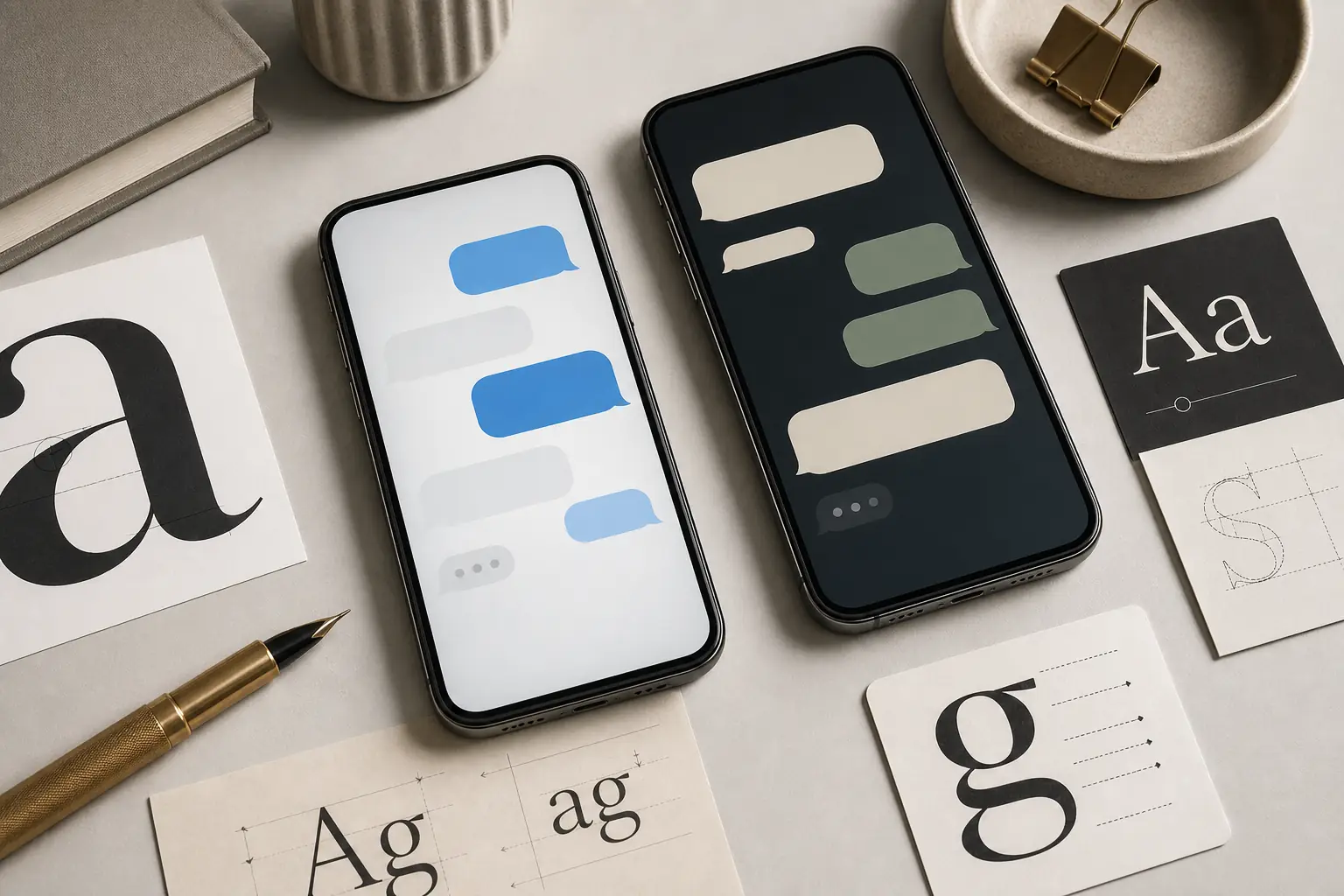
La maggior parte dei messaggi di testo sul telefono non usa un carattere creato esclusivamente per la messaggistica. Di solito eredita il carattere predefinito dell'interfaccia del sistema operativo. Sugli iPhone recenti si tratta della famiglia San Francisco di Apple. Su molti telefoni Android la risposta è Roboto, ma Samsung, Google Pixel, Xiaomi e altri dispositivi possono usare il proprio carattere di interfaccia o una variante personalizzata nell'app Messaggi.
Ecco perché due screenshot con bolle di chat blu e grigie simili possono apparire leggermente diversi. Il carattere può cambiare in base alla versione del sistema, al produttore, alla lingua, alla dimensione del display, alla dimensione del testo per l'accessibilità, al testo in grassetto e all'app di messaggistica. Per la ricerca SEO e di design, quindi, la domanda migliore non è solo quale carattere usano i messaggi, ma anche quale stack di caratteri di sistema riesce a ricreare abbastanza bene quello stile.
Font dei messaggi su iPhone e Android
Usa questa tabella come punto di partenza pratico. Non sostituisce una verifica della licenza e non garantisce il risultato per ogni screenshot dell'app, ma indica la famiglia giusta da provare per prima.
| Piattaforma o app | Carattere probabile | Cosa cambia il risultato | Uso consigliato |
|---|---|---|---|
| Messaggi iPhone / iMessage | Carattere di sistema San Francisco | Può variare in base alla versione di iOS, alla dimensione di Dynamic Type, al grassetto, alla lingua e alla scala dello screenshot. | Usalo come prima corrispondenza per gli screenshot iPhone con bolle blu. |
| Google Messaggi su Android | Roboto o carattere dell'interfaccia di sistema Google | Può variare in base alla versione di Android, alle impostazioni del dispositivo e agli aggiornamenti di Material Design. | Usalo per le schermate dei messaggi in stile Pixel o Android standard. |
| Messaggi Samsung | Carattere dell'interfaccia di sistema Samsung o fallback simile a Roboto | I temi One UI, i caratteri scaricati e le impostazioni di accessibilità possono cambiare il risultato visibile. | Confronta le forme delle lettere prima di dare per scontato che sia Roboto. |
| App di messaggistica di terze parti | Carattere specifico dell'app o carattere di sistema | WhatsApp, Messenger, Telegram e altre app possono definire scelte proprie per l'interfaccia. | Identificalo combinando lo screenshot con il contesto dell'app. |
Identificare un font da uno screenshot
Quando il messaggio compare in uno screenshot, un'estensione del browser non può leggere il CSS perché non c'è testo attivo. Ritaglia una o due bolle ben leggibili, mantieni il testo orizzontale ed evita timestamp troppo piccoli. Poi usa un rilevatore di caratteri basato su immagini per ottenere i candidati più probabili e confrontali con il carattere di sistema della piattaforma.
Osserva le lettere che rivelano il carattere: a, g, e e t minuscole, numeri, punteggiatura e spaziatura tra le parole. Gli screenshot dei messaggi sono spesso compressi, ridimensionati e antialiasati; perciò la corrispondenza visiva più vicina può essere più utile che dichiarare di aver trovato il carattere esatto.
Flusso consigliato
Parti dall'indizio della piattaforma: iPhone fa pensare a San Francisco, mentre molti screenshot Android indicano Roboto o un carattere dell'interfaccia del produttore. Usa Font Detector quando lo screenshot proviene da un dispositivo sconosciuto, da una ripubblicazione sui social o da un mockup modificato.
Abbinare i font dei messaggi nel design
Per i mockup Web o di prodotto, usa uno stack di caratteri di sistema invece di scaricare un carattere per l'interfaccia del telefono che potresti non essere autorizzato a redistribuire. Uno stack come -apple-system, BlinkMacSystemFont, 'Segoe UI', Roboto, Arial, sans-serif permette al browser di scegliere un carattere d'interfaccia dall'aspetto nativo su ogni piattaforma.
Per i file di design statici, usa il carattere di sistema installato più vicino e concentrati sull'insieme del messaggio: larghezza della bolla, altezza della riga, dimensione, peso, contrasto, spaziatura interna e raggio degli angoli. Un carattere corretto con spaziatura sbagliata è meno convincente di un carattere simile con il ritmo giusto.
Punto di partenza CSS pratico
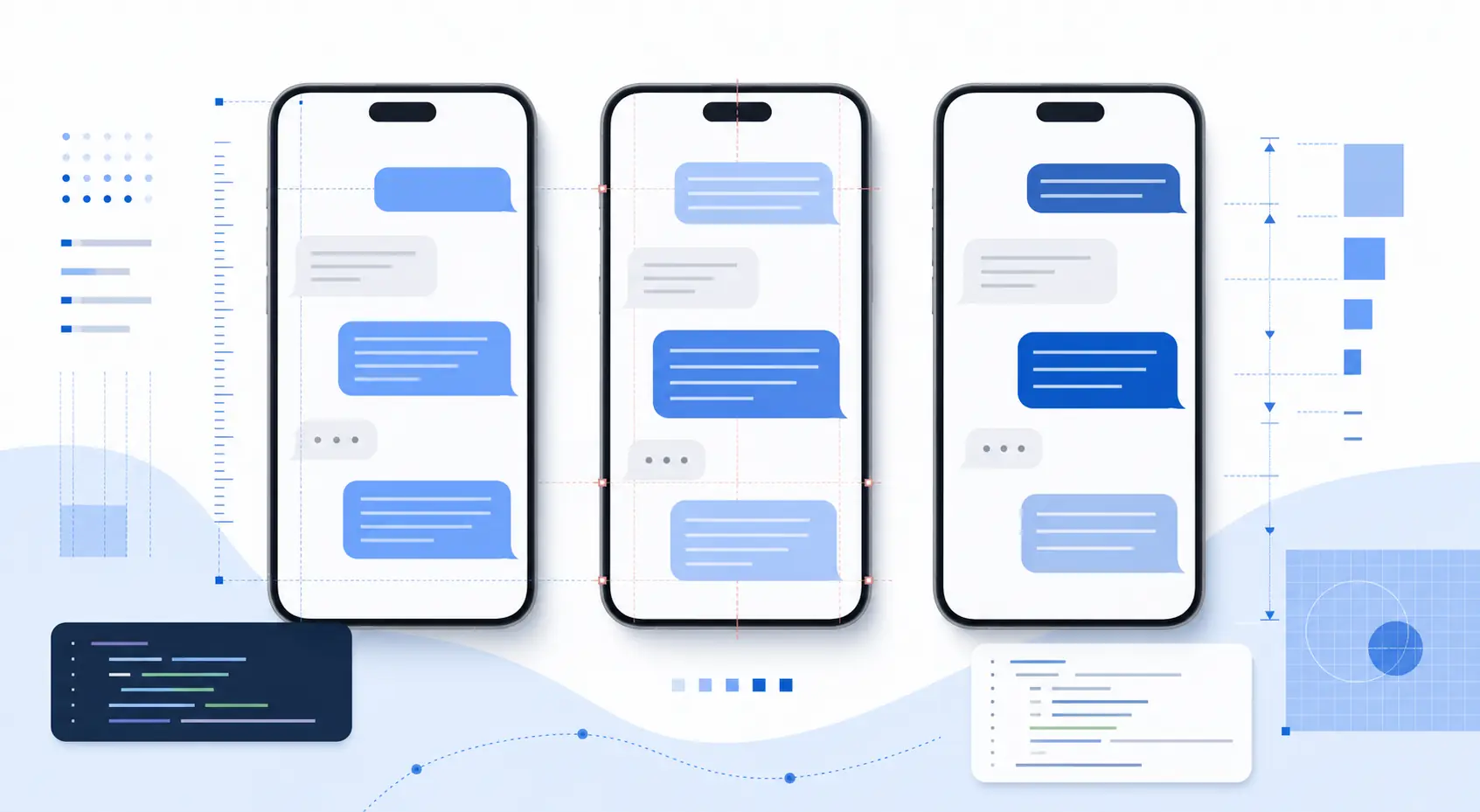
Per un mockup multipiattaforma, parti da font-family: -apple-system, BlinkMacSystemFont, 'Segoe UI', Roboto, Arial, sans-serif; poi regola font-size, line-height e font-weight per abbinarli allo screenshot.
Puoi cambiare font o dimensione?
La maggior parte degli utenti può modificare la dimensione del testo dei messaggi dalle impostazioni di visualizzazione o accessibilità del sistema. Su iPhone si regolano di solito la dimensione del testo e il grassetto nelle impostazioni di iOS; su Android si modificano la dimensione del display, la dimensione del carattere e talvolta il tema del produttore. L'app può ereditare questi valori senza offrire un selettore separato per il carattere dei messaggi.
Cambiare la famiglia di caratteri è più difficile. Alcune interfacce Android e app di messaggistica di terze parti supportano caratteri o temi personalizzati, ma iMessage e molte app predefinite seguono la tipografia del sistema operativo. Se documenti uno screenshot, indica dispositivo e impostazioni invece di presumere che tutti vedano lo stesso carattere.
Domande frequenti
Riferimenti e fonti utili
Ultimo aggiornamento: 2 luglio 2026
Torna a Font Detector